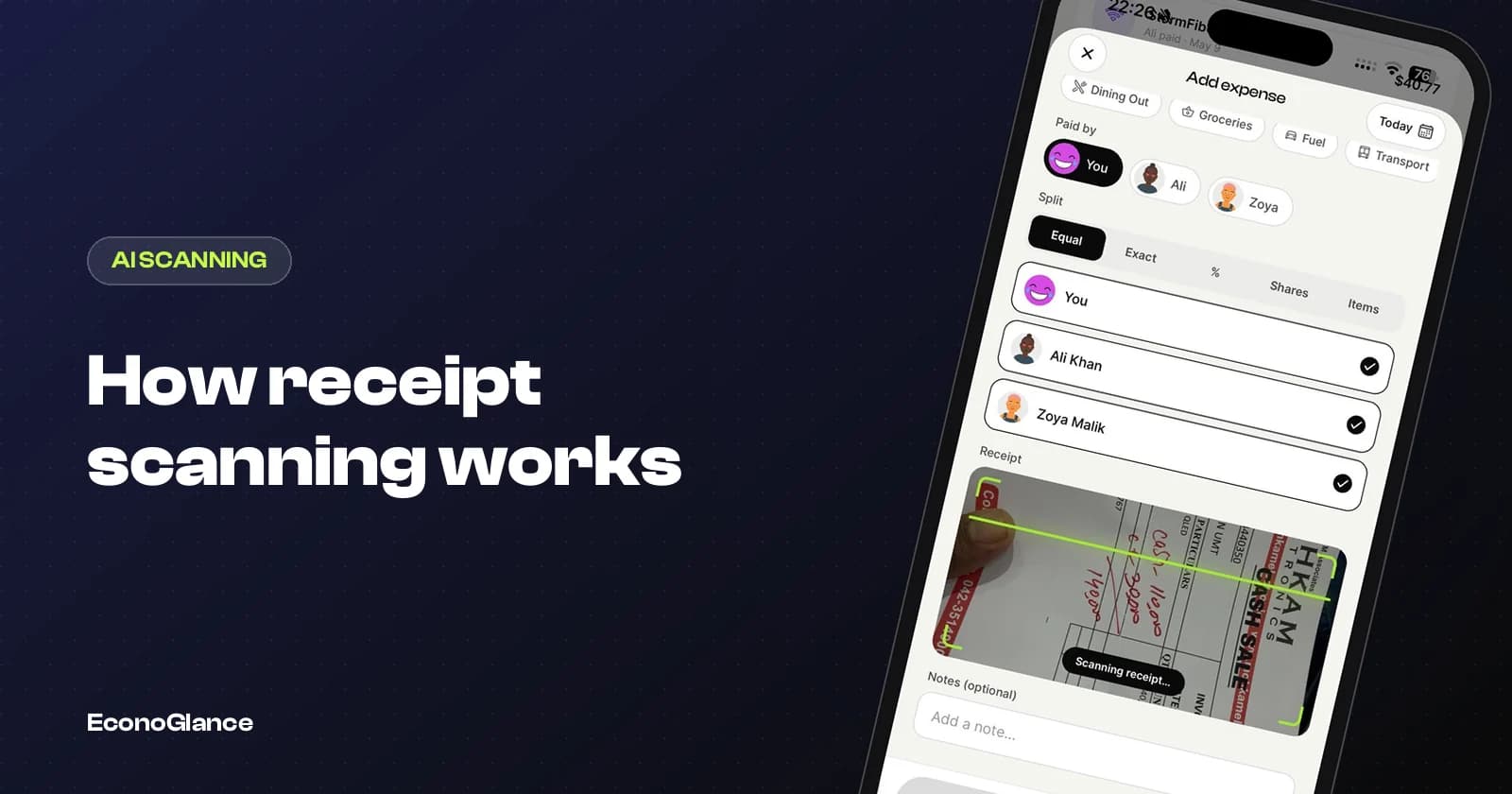
AI receipt scanning turns a photo of a receipt into structured data: the merchant, date, line items, tax, tip and total. Modern scanners do it in a few steps. They clean up the image, read the text, use an AI vision model to understand which text is which, and then check that the numbers add up. The result is usually right on a clear printed receipt. It is most likely to be wrong on faded paper, handwriting and receipts with discounts or tips added by hand.
The pipeline, step by step
Different apps vary, but the stages are broadly the same.
| Stage | What happens | What can go wrong |
|---|---|---|
| 1. Capture | The photo is taken, cropped and compressed | Blur, glare, a folded receipt |
| 2. Clean-up | The image is straightened and enhanced | Very faded thermal paper |
| 3. Text recognition (OCR) | Characters and words are read from the image | Similar characters, such as 8 and B, confused |
| 4. Understanding | An AI model works out which text is the merchant, items, tax and total | Abbreviated item names, unusual layouts |
| 5. Validation | The numbers are checked: do items, tax and tip add up to the total? | Discounts and service charges that are hard to place |
| 6. Review | Low-confidence fields or mismatches are flagged to you | Only works if you look |
Older scanners stopped after OCR and used rules to guess which number was the total. Newer ones add a vision language model, which reads the image and the text together and can understand that 'TTL' on the last line of a column is the total, or that a negative number under an item is a discount.
What AI gets right
On a clear, printed, itemised receipt, modern scanning is reliable.
- Merchant name, date and total on standard printed receipts.
- Line items with prices, including quantities.
- Tax lines that are clearly labelled.
- Receipts in many languages and currencies, when the model has seen similar ones.
What it gets wrong, and why
Errors cluster in a few predictable places.
| Receipt | Why it is hard | What to check |
|---|---|---|
| Faded thermal paper | Little contrast for OCR | Every number, especially the total |
| Handwritten bills | Handwriting varies hugely | Items and total, by hand |
| Discounts and offers | The discount may apply to one item or the whole bill | That the discount is on the right line |
| Tips written in by hand | The printed total is not what you paid | The final amount on your card |
| Service charges | Easily mistaken for tax or tip | That it is not counted twice |
| Very long receipts | Photographed in parts, or cut off | That no items are missing |
The 20-second checking habit
Before you split a scanned receipt, check four things.
- The total matches what you actually paid, including any tip.
- The date is right, especially on receipts with several dates printed.
- Any discount is on the right item.
- The number of items looks right, so nothing was cut off.
If the items do not add up to the total, the scan is telling you something is off. Good scanners run that check themselves and flag the receipt for review rather than splitting a total that does not reconcile.
How EconoGlance's scanner works
Since this is our own feature, here is exactly what it does.
On your phone, the photo is compressed and its EXIF metadata, which can include the location where it was taken, is stripped before upload. The image is optionally enhanced and read with OCR, then sent with that text to Google's Gemini 2.5 Flash-Lite model, which returns structured fields with a confidence score for each. EconoGlance then rebuilds the subtotal, tax and total and checks they reconcile. If the overall confidence is below 90%, or the line items do not add up to the total, the scan is flagged for you to review. You then assign items to people, and the split is done.
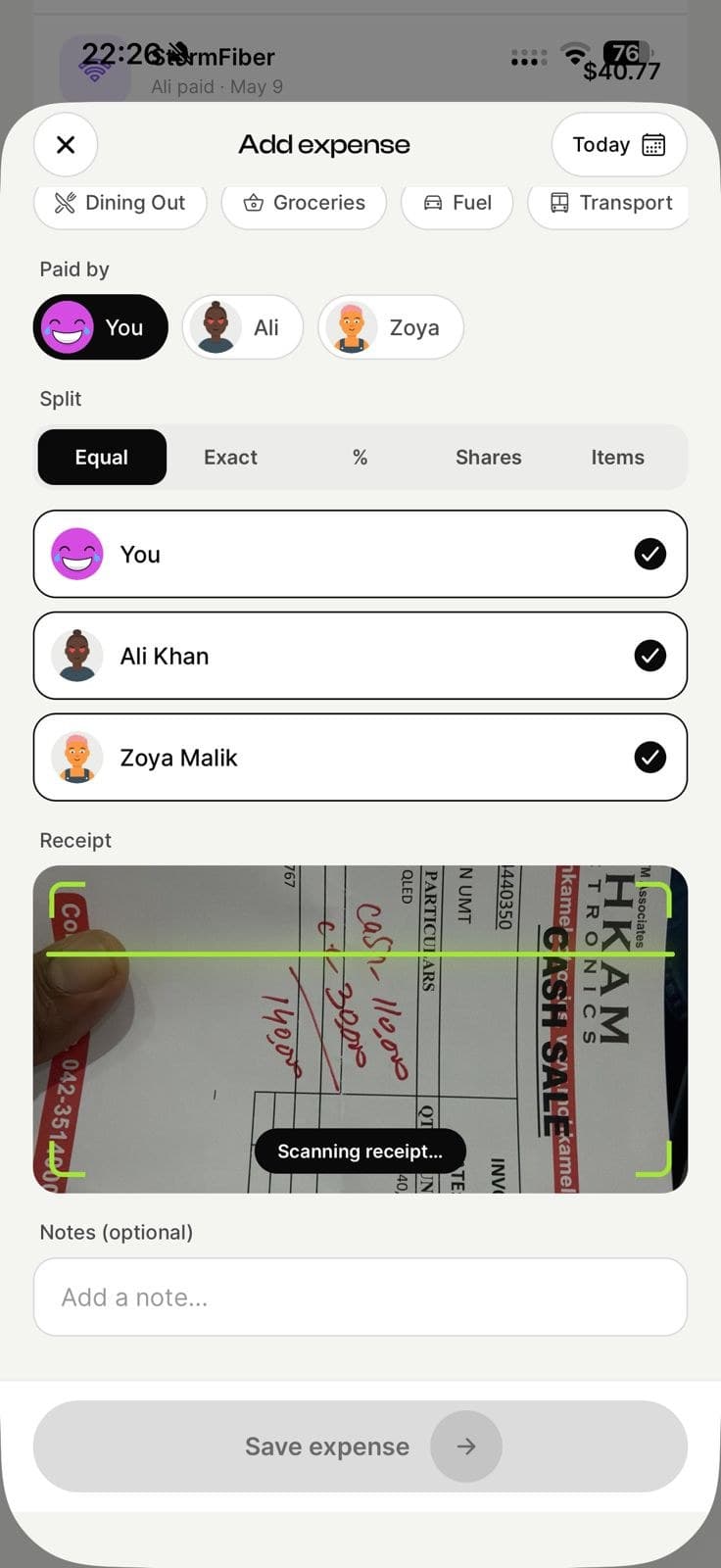
Receipt scanning is part of EconoGlance Pro, at $4.99 a month after a 3-day free trial, with up to 80 scans a month and a limit of 30 in any 24 hours. The receipt image is kept in private storage so the expense keeps its proof.
Privacy: what to ask any scanning app
A receipt can reveal where you were, what you bought and part of your card number.
- Is location metadata removed from the photo before upload?
- Where is the image stored, and who can see it?
- Is the image or text used to train models?
- Can you delete a receipt and its image?
For a comparison of scanning apps, read the best app that scans receipts. For splitting a scanned bill by item, see how to split a bill by items.